The global transition toward remote and hybrid work models has permanently altered the spatial dynamics of modern residential architecture. For millions of knowledge professionals, the home office is no longer a casual corner for sorting Sunday bills; it is the mission-critical command center where forty to fifty hours of intensive cognitive labor occur each week. Unfortunately, many home workspaces were assembled haphazardly: improvising with dining room chairs, resting laptops on low coffee tables, or cramming desks into poorly lit corners. Over months and years, these compromised setups exact an exorbitant toll on human biology, manifesting as chronic cervical strain, lumbar disc compression, carpal tunnel inflammation, visual fatigue, and creeping cognitive burnout.
Creating an elite home office is an architectural and physiological endeavor that extends far beyond buying an expensive desk chair. True ergonomic design is an integrated ecosystem that harmonizes spinal biomechanics, visual focal geometry, acoustic sound dampening, dynamic movement kinetics, and environmental atmospheric control. When a workstation is calibrated to the natural neutral postures of the human musculoskeletal system, physical strain evaporates, mental focus sharpens, and workday energy levels remain steady. A thoughtfully engineered office layout respects human anatomy while providing an inspiring aesthetic environment that fosters sustained creative output.
Grounding your workspace in certified ergonomic standards ensures that every furniture selection and dimensional measurement actively protects your physical health. Incorporating workstation guidelines from the Occupational Safety and Health Administration, musculoskeletal prevention research from the National Institute for Occupational Safety and Health, human factors standards from the Human Factors and Ergonomics Society, and clinical posture wellness data from the Mayo Clinic, this guide delivers an authoritative roadmap for planning, outfitting, and calibrating a high-performance home office.
Throughout the comprehensive technical sections that follow, we unpack every dimension of ergonomic workspace engineering. You will examine spatial floor layouts and natural light orientation, precision task chair mechanics, desk reach envelopes, motorized sit-stand desk dynamics, dual-monitor focal alignment, neutral wrist keyboard trays, acoustic reverberation control, and clean cable management raceways. Whether you are dedicating an entire spare bedroom to your professional career or optimizing a compact urban alcove, this master manual delivers field-tested blueprints to protect your posture, elevate your well-being, and maximize your daily productivity.
Spatial Floor Planning and Environmental Light Orientation
Every successful workspace begins with intelligent spatial orientation. The physical position of your desk relative to windows, doorways, and room walls dictates visual comfort, acoustic distraction, and psychological authority. Placing a desk facing directly against a blank drywall partition produces visual claustrophobia and optical fatigue, as the human ciliary eye muscles remain locked at a fixed focal distance of twenty inches for hours without resting.
Natural illumination must be harnessed without introducing direct ocular glare or monitor reflections. The gold standard of desk placement is the perpendicular window alignment, where the desk sits at a ninety-degree angle to primary exterior windows. This orientation allows natural daylight to illuminate your work surface laterally, preventing the harsh backlighting caused by placing your back to a window (which renders your computer screen illegible and casts your face in deep shadow on video calls). It also avoids placing the desk facing directly into the window, which forces your pupils to contract continuously against sky brightness while straining to read a dimmer monitor.
Psychological spatial grounding relies on the classic command position derived from architectural environmental psychology. Position the desk so you maintain an open, unobstructed view of the entry doorway while keeping a solid architectural wall behind your back. Sitting with your back exposed to an open door or high-traffic hallway triggers subtle subconscious vigilance: an ancient evolutionary response that slightly elevates baseline stress hormones and causes distraction. Positioning your chair backed by a solid wall creates a secure cognitive anchor that fosters deep, uninterrupted focus.
Circulation clearances within the room preserve functional workflow and physical movement. Maintain a minimum perimeter clearance of thirty-six to forty-two inches behind the desk to permit your ergonomic task chair to recline fully, swivel, and roll backward without striking walls or credenzas. Secondary walkways leading to book storage, file cabinets, or reading armchairs should provide at least thirty inches of clear passage. Keeping the floor plane unobstructed encourages spontaneous standing, pacing, and movement throughout long phone calls and brainstorming sessions.
Video conferencing backdrop staging forms a critical professional component in modern home office planning. In the era of high-definition webcams, your background conveys subtle signals of professional credibility and attention to detail. Position your desk so your webcam frames a tidy, thoughtfully styled background: such as built-in oak bookshelves, textured acoustic wall slats, or framed architectural artwork: while avoiding views into messy bedrooms, unmade beds, or high-traffic residential hallways. Ensure overhead ambient light does not cast deep shadows beneath your eyes, supplementing your camera with soft, diffused key lighting positioned slightly above eye level.
The Ergonomic Seating Engine: Pelvic Alignment and Spinal Decompression
The ergonomic task chair represents the most critical mechanical investment in your entire home workspace. The human body evolved to stand, walk, and run; sitting upright in a static ninety-degree position forces the lumbar spine to support unprecedented compressive loads. In a slumped sitting posture, intradiscal pressure inside the lower lumbar discs (L4-L5 and L5-S1) spikes by nearly three hundred percent compared to standing posture, compressing nerve roots and starving spinal cartilages of oxygen-rich fluid. An engineered task chair counteracts these compressive forces by actively supporting the body’s natural skeletal alignment.
Pelvic tilt mechanics govern the posture of the entire upper torso. When you sit on a flat, unyielding surface, the pelvis naturally rotates backward (posterior pelvic tilt), causing the lumbar spine to flatten and the thoracic spine to hunch forward into a kyphotic slump. Premium ergonomic chairs feature forward tilt mechanisms (one to four degrees of downward incline) or dynamic waterfall seat pans. Tilting the pelvis slightly forward maintains the natural inward curve of the lower back (lordosis), distributing upper body weight evenly onto the ischial tuberosities (sit bones) and relieving pressure on the lower spinal discs.
Dynamic synchro-tilt mechanisms provide responsive recline that promotes spinal fluid circulation. Static, rigid backrests that lock at ninety degrees force static muscular contractions that lead to fatigue. Advanced synchro-tilt mechanisms allow the backrest and seat pan to recline in an anatomically calibrated 2:1 ratio: for every two degrees the backrest reclines, the seat pan tilts upward by one degree. Reclining between one hundred and ten and one hundred and twenty degrees transfers significant upper torso weight onto the chair’s backrest, reducing disc compression while opening up the hip angle to promote healthy diaphragmatic breathing.
Adjustable lumbar support must be customized in both height and depth. Generic curved plastic backrests rarely align with individual spinal curves. An adjustable lumbar cushion or bladder must nestle precisely into the curve of your lower back, positioned approximately seven to ten inches above the seat pan. The lumbar support should exert firm, gentle forward pressure to preserve lordosis without pushing your pelvis awkwardly forward on the seat. Adjustable seat depth (seat slider) ensures that two to three fingers of clear space remain between the front edge of the seat cushion and the back of your knees, preventing restriction of femoral blood circulation.
Four-dimensional (4D) armrest engineering eliminates shoulder and trapezial strain. Fixed armrests frequently force your shoulders to shrug upward or cause your elbows to flare outward, leading to tension headaches and neck stiffness. 4D armrests adjust in height, depth, width, and pivot angle. Calibrate armrest height so your forearms rest parallel to the floor with your shoulders relaxed, allowing your elbows to form a comfortable ninety-to-one-hundred-degree angle while typing without pressing heavily on delicate ulnar nerve channels.
Upholstery material selection governs thermal regulation and long-term pelvic comfort. High-performance elastomeric suspension mesh allows airflow to circulate freely around the body, dissipating body heat and preventing moisture accumulation during marathon work sessions. However, mesh seat pans must feature soft perimeter foam inserts to prevent frame pressure points beneath thighs. For individuals who prefer foam cushions, high-density cold-cure molded polyurethane foam maintains its contoured shape and compressive resilience over decades without packing down or creating painful pelvic pressure hot spots.
Desk Geometry, Spatial Reach Zones, and Desktop Topography
The desktop surface is not merely a passive horizontal shelf; it is an active staging ground where physical tools must be arranged according to human reach ergonomics. Forcing the body to repeatedly reach forward beyond natural arm extension strains the supraspinatus rotator cuff tendons, tightens the pectoralis muscles, and pulls the cervical spine into chronic forward head posture. Understanding spatial reach envelopes transforms desk organization into an effortless, fatigue-free experience.
Ergonomists divide the desktop into three distinct horizontal reach envelopes. The primary reach zone (neutral zone) encompasses a semi-circular arc of fourteen to eighteen inches radiating from your seated body position. Items located within this zone can be reached effortlessly with your upper arms resting naturally at your sides and your elbows bent at ninety degrees. Your primary keyboard, vertical mouse, and notepad must reside exclusively within this primary zone to prevent continuous reaching and shoulder abduction.
The secondary reach zone extends from eighteen to twenty-four inches, accessible by extending your forearms without leaning your torso forward from the chair backrest. This intermediate zone accommodates secondary work tools, such as your desktop telephone, stream deck, reference documents, morning coffee mug, and digital tablet. The tertiary reach zone spans twenty-four to thirty inches, requiring you to bend forward at the waist or stand to retrieve objects. Reserve this distant perimeter for display monitor stands, decorative table lamps, speakers, and desktop plants that do not require frequent physical manipulation.
Desktop depth dimensions directly dictate visual focal comfort. Many compact commercial desks feature shallow depths of barely twenty to twenty-four inches. In a workstation equipped with a large twenty-seven- or thirty-two-inch monitor, a twenty-inch desk forces the display uncomfortably close to your face, causing visual convergence fatigue and leaving zero room for a keyboard and forearm resting area. An ideal ergonomic desk depth measures twenty-eight to thirty inches, providing generous clearance for articulating monitor arms, negative-tilt keyboard trays, and open reference documents without crowding.
Edge profile engineering prevents contact stress neuropathy. Sharp, ninety-degree laminated desktop edges exert intense mechanical pressure on the soft anterior tissues of your wrists and forearms, compressing the median nerve and radial artery during typing. Specify desktop tops featuring gentle beveled bullnose edges, curved waterfall radiuses, or sculpted ergonomic comfort edge chamfers that distribute contact pressure softly across the forearm musculature.
Motorized Sit-Stand Dynamics: The Kinetics of Active Working
Even the most advanced ergonomic task chair cannot compensate for uninterrupted static sitting. Prolonged immobility slows metabolic blood circulation, pools venous blood in lower leg veins, and reduces insulin sensitivity. However, standing statically for eight hours straight is equally damaging, causing plantar fasciitis, varicose veins, and joint fatigue in knees and hips. The modern ergonomic solution is dynamic postural variation powered by an engineered sit-stand workstation.
The clinical standard for workday posture variation is the Cornell University 20-8-2 formula. Across every thirty-minute work cycle, spend twenty minutes sitting in a relaxed, supported posture, eight minutes standing with active weight distribution, and two minutes moving, stretching, or walking. Incorporating this dynamic cadence throughout the day prevents muscle fatigue, boosts cardiovascular alertness, and eliminates afternoon energy slumps without interrupting high-level cognitive focus.
Motorized desk frame engineering dictates operational stability and longevity. Budget single-motor sit-stand desks often wobble noticeably at full standing extension, causing monitor arms to shake violently with every keystroke. High-performance desks utilize heavy commercial three-stage dual-motor lifting columns integrated into inverted steel T-legs. Dual synchronized motors deliver whisper-quiet travel speeds (at least 1.5 inches per second), support weight capacities exceeding three hundred pounds, and feature anti-collision gyroscopic sensors that stop movement instantly if the desk encounters an obstacle like an open drawer or chair armrest.
Desktop height calibration must be tailored to your exact physical standing ergonomics. When standing, adjust the desktop surface so that your elbows rest at a ninety-degree angle when your hands touch the keyboard, with your shoulders relaxed and down. A common mistake is raising the desk too high, which forces your shoulders into a permanent shrug and triggers tension in your upper trapezius muscles. Programmable digital memory controllers with at least four preset heights allow you to toggle between sitting, standing, and intermediate heights with a single touch.
Anti-fatigue standing mat engineering provides vital foot and joint cushioning during standing phases. Standing on hard hardwood, tile, or thin carpet compresses the delicate plantar fascia of your feet, leading to heel pain and knee fatigue. High-density polyurethane anti-fatigue mats with calculated rebound elasticity stimulate micro-contractions in calf muscles, acting as a muscular venous pump that circulates blood back toward the heart. Selecting active standing mats with contoured terrain features: such as raised perimeter mounds and central balance balls: encourages subtle weight shifting, calf stretching, and active foot fidgeting that keeps joints loose.
Visual Ergonomics: Dual-Monitor Focal Alignment and Glare Mitigation
Digital eye strain, clinically known as computer vision syndrome, affects over seventy percent of knowledge workers who stare at computer screens for extended hours. Symptoms include dry, burning eyes, blurred vision, tension headaches, and chronic neck stiffness caused by leaning forward to read small text. Visual ergonomics harmonizes focal distances, viewing angles, ambient lighting contrast, and display positioning to preserve ocular health.
Monitor elevation and vertical tilt dictate cervical spine posture. The human eye has a natural resting downward gaze angle of fifteen to twenty degrees below the horizontal eye line. The top edge of your computer monitor screen should sit at or slightly below your horizontal eye level when sitting upright with your head in a neutral position. Positioning a monitor too high forces your neck into backward extension, pinching cervical nerve roots; positioning it too low causes forward head posture, multiplying the effective weight of your head on cervical muscles by up to five times.
Focal distance must be calibrated to individual visual acuity and screen dimensions. As a general benchmark, your computer monitor should sit at an arm’s length distance: approximately twenty to twenty-eight inches away from your eyes. For large ultrawide displays (thirty-four to forty-nine inches), increase viewing distance to thirty to thirty-four inches. Curved monitor panels (with radii ranging from 1800R to 1000R) provide immense ergonomic benefits for wide displays by ensuring that every pixel from the screen center to the outer edges remains equidistant from your eyes, eliminating constant refocusing by your ciliary eye muscles.
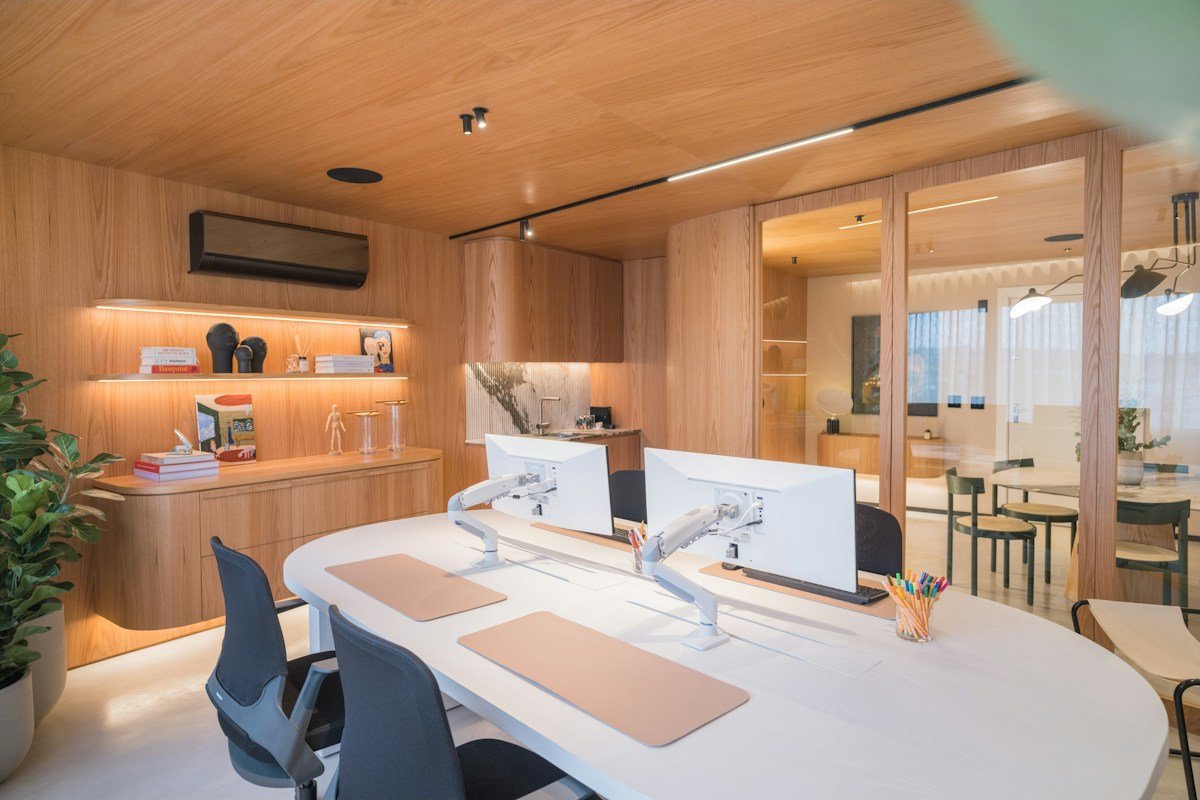
Dual-monitor configuration depends directly on your workflow priority. If you utilize both monitors equally (fifty-fifty usage), center the seam between the two displays directly in front of your nose, angling both screens inward in a gentle concave arc. If you utilize one primary monitor eighty percent of the time with a secondary display for email or reference materials, position the primary monitor directly centered in front of your keyboard, placing the secondary monitor to the left or right angled inward at thirty degrees. This setup ensures that your neck remains in a relaxed, forward-facing neutral alignment during your primary tasks.
Display refresh rates and anti-glare panel coatings significantly influence ocular fatigue. Standard sixty-hertz monitors exhibit subtle micro-stutters during scrolling that force ocular tracking muscles to work harder. Stepping up to displays with high refresh rates of one hundred and twenty hertz or higher delivers silky, fluid text movement that eliminates motion blur. Furthermore, choosing displays with matte 3H anti-glare coatings scatters specular light reflections from overhead lamps and windows, preserving crisp contrast without forcing you to squint.
Balanced ambient illumination and bias lighting eliminate high-contrast eye fatigue. Working in a dark room with a brightly glowing monitor strains pupils, forcing them to dilate and constrict continuously as your gaze shifts between screen and surroundings. Installing a high-CRI (Color Rendering Index > 95) balanced LED bias light bar behind your monitor casts a soft halo of indirect light across the wall, reducing contrast ratios. Supplement this with an asymmetric monitor light bar mounted to the top of your screen that illuminates your keyboard and desk surface without washing out the screen or creating annoying reflections.
Neutral Input Mechanics: Keyboards, Mice, and Articulated Trays
Repetitive strain injuries (RSI) like carpal tunnel syndrome, cubital tunnel syndrome, and lateral epicondylitis (tennis elbow) originate in compromised wrist and arm mechanics during keyboard and mouse usage. When your wrists bend backward (wrist extension), bend outward toward your pinky fingers (ulnar deviation), or rest heavily on hard desktop edges, pressure inside the carpal tunnel sky-rockets, compressing the median nerve and inflaming flexor tendons.
The cornerstone of healthy typing mechanics is the negative tilt keyboard tray. Most standard commercial keyboards feature small pop-up feet on the back that tilt the keyboard upward toward the user. This positive tilt forces wrists into severe, unnatural backward extension. An adjustable under-desk keyboard tray allows you to angle the keyboard with a negative tilt (front raised, back sloping downward away from you by five to ten degrees). This negative tilt aligns your hands, wrists, and forearms into a straight, continuous line, allowing wrists to hover in neutral relaxation while typing.
Split ergonomic keyboards eliminate ulnar deviation and forearm pronation. Traditional straight keyboards force your hands to squeeze inward, bending your wrists outward in chronic ulnar deviation. Ergonomic split keyboards divide the key matrix into two separate modules that can be spaced shoulder-width apart and angled outward to match the natural angle of your arms. Many ergonomic keyboards also feature tenting kits: elevating the inner thumb edges by ten to twenty degrees: which keeps your hands in a natural handshake angle, eliminating the twisted muscular strain of complete forearm pronation.
Vertical ergonomic mice transform wrist alignment during navigation. Standard flat mice force your forearm bones (radius and ulna) to cross over each other in full pronation, pinching nerves and straining forearm extensors. A vertical ergonomic mouse reorients your hand into a neutral fifty-seven-degree vertical handshake posture. This anatomical angle shifts the movement mechanics from delicate wrist twitches to the larger, stronger muscles of your forearm and shoulder, drastically reducing friction inside the carpal tunnel.
Mechanical key switch actuation forces govern fingertip joint fatigue. Cheap membrane keyboards require users to bottom out each key with heavy mechanical force to register a keystroke, sending shockwaves through finger joints. High-end mechanical keyboards featuring light, linear switches (such as forty-five-gram actuation force switches) register key inputs halfway through key travel, encouraging a light, featherweight typing technique that dramatically reduces daily muscular strain across thousands of keystrokes.
Acoustic Architecture, Sound Masking, and Cognitive Focus
Cognitive productivity is intimately tied to auditory environmental control. Unwanted noise in the home: barking neighborhood dogs, distant traffic rumblings, lawnmowers, household appliances, or family chatter: continuously triggers subtle fight-or-flight cortisol spikes, shattering deep cognitive flow. Furthermore, untreated residential rooms feature harsh, parallel drywall surfaces that create distracting echoes during professional conference calls.
Acoustic absorption begins with room surface treatments. Hard, reflective surfaces (hardwood flooring, large glass windows, and bare drywall) bounce sound waves across the room, creating an echo-chamber environment with high reverberation time. Introducing thick wool area rugs with dense felt underlayment absorbs low- and mid-frequency sound waves. Floor-to-ceiling heavy velvet draperies hung along window walls dampen street noise while softening interior flutter echoes. Incorporating fabric-wrapped acoustic wall panels (with high Noise Reduction Coefficient ratings of 0.80 or greater) on the wall directly opposite your speaking position absorbs vocal sound waves, ensuring crystal-clear audio during video conferences.
Sound masking systems introduce continuous, soothing auditory blankets that mask sudden noise spikes. While complete silence can make every minor creak in the house sound jarring, a dedicated white, pink, or brown noise generator softens acoustic contrasts. Brown noise, characterized by deep, low-frequency rumbles similar to a gentle waterfall or heavy rainfall, masks human speech frequencies exceptionally well without inducing auditory fatigue, creating a focused acoustic bubble that enhances reading comprehension and programming flow.
Environmental climate control directly influences cognitive performance and physical stamina. Academic research confirms that office productivity drops by up to ten percent when indoor temperatures rise above seventy-six degrees Fahrenheit or fall below sixty-six degrees. The optimal thermal neutral zone for cognitive work spans sixty-eight to seventy-two degrees Fahrenheit with relative humidity maintained between forty and fifty percent. Incorporating a quiet HEPA air purifier equipped with an active carbon filter removes dust, airborne pet dander, and volatile organic compounds (VOCs), while monitoring indoor carbon dioxide (CO2) levels to prevent the cognitive sluggishness caused by stale indoor air.
Cable Architecture, Organization, and Mental Clarity
Visual clutter is neurological clutter. In environmental psychology, a workspace littered with tangled cords, loose paperwork, and messy power strips continuously drains cognitive bandwidth, signaling unfinished tasks and generating subtle domestic anxiety. A clean, streamlined desk surface frees the mind to concentrate fully on high-value creative and analytical challenges.
Under-desk cable management raceways form the structural backbone of a clean setup. Sit-stand desks present unique cable management challenges: cords must be long enough to reach full standing height without pulling taut or unplugging devices, yet cannot dangle in messy loops when the desk is lowered to sitting height. Install a heavy-gauge steel or mesh cable management channel beneath the rear underside of the desktop. Mount a multi-outlet surge protector and heavy power bricks directly inside this tray, allowing all monitor, laptop, and accessory cables to plug in beneath the desk surface.
A single umbilical cord should connect the moving desk to the wall. Route all primary power through a flexible, articulated vertical cable spine or braided cable sleeve running from the under-desk tray down to the baseboard wall outlet. This single cable bundle flexes cleanly as the desk ascends and descends, eliminating messy cords hanging behind the desk while preventing pets or children from tugging on electrical cables.
Magnetic channels and adhesive silicone cable anchors keep daily charging cords instantly accessible. Utilize magnetic cable collars attached to the desk frame or leg to park USB-C, lightning, and headphone cables neatly at your fingertips without letting cord ends slip behind the desk. Incorporating wireless charging pads integrated flush into the desktop surface eliminates loose charging cables for mobile phones and smartwatches, preserving a sleek, minimalist work surface.
Micro-Break Biomechanics and Active Workday Mobility
Even the most technologically sophisticated ergonomic furniture cannot replace the physiological necessity of physical movement. The human vascular and lymphatic systems rely on skeletal muscle contractions: particularly the calf muscle pump and diaphragmatic expansion: to circulate fluids, clear metabolic waste, and deliver fresh oxygen to working brain tissues. Integrating structured micro-break biomechanics into your workday routine actively counteracts the postural creep that inevitably occurs during intense focus sessions.
Thoracic spine mobility resets are essential for counteracting desk-bound forward hunching. Throughout the day, the thoracic vertebrae naturally settle into excessive kyphotic curvature, tightening the anterior chest wall and placing heavy shear stress on the neck. Every sixty minutes, perform seated thoracic extensions: interlace your fingers behind your head, gently inhale, and lean your upper back backward over the curved top rim of your chair backrest. Hold this gentle backward arch for five deep diaphragmatic breaths, expanding your ribcage and realigning thoracic vertebrae without hyperextending your lower back.
Deep cervical flexor activations and chin tucks eliminate forward head posture. For every inch your head drifts forward past your shoulders, the effective gravitational load on your posterior neck muscles increases by ten pounds. Perform chin tucks while seated upright: look straight ahead, place a finger on your chin, and gently glide your head straight backward as if making a subtle double chin, lengthening the suboccipital muscles at the base of the skull. Hold for five seconds and release, repeating ten times to reactivate the deep cervical stabilizing muscles that support your head.
Hip flexor decompression and standing glute activations restore pelvic neutrality. Prolonged sitting keeps the iliopsoas and rectus femoris muscles in a chronically shortened, contracted state. When you eventually stand up, these tight hip flexors pull your pelvis into excessive anterior tilt, triggering lower back pain. During your scheduled standing intervals, step one foot back into a shallow lunge, tuck your tailbone slightly under to engage the glute of the rear leg, and feel a deep, restorative stretch along the front of your hip. Pairing this with a tall doorway pectoral stretch opens your chest, drops your shoulders down, and leaves you refreshed for your next work block.
Workstation Performance Comparison: Home Office Configurations Compared
Selecting an ideal home office workstation configuration requires balancing physical ergonomic support, spatial footprint, investment cost, and long-term durability. Different professional disciplines: from software engineering and graphic design to executive management and freelance writing: require tailored equipment setups to perform at peak capacity.
Evaluating ergonomic equipment ensures that your investment addresses your specific postural pain points and workflow demands. Investing in high-grade, commercial-quality furniture guarantees years of trouble-free performance, whereas cheap consumer-grade alternatives often break down within months, causing ongoing postural discomfort.
The comprehensive matrix below compares the structural specifications, ergonomic posture benefits, space footprints, and ideal professional use cases across the four primary home office workstation configurations.
| Workstation Configuration | Postural Alignment Level | Physical Movement Capacity | Spatial Footprint Required | Equipment Investment Cost | Target Professional Discipline |
|---|---|---|---|---|---|
| Executive Ergonomic Setup | Very High (4D chair + single ultrawide) | Moderate (fixed solid hardwood desk) | Large (60×30 inch desk + credenza) | ,800 – ,200 (premium materials) | Executives, consultants, attorneys |
| Active Sit-Stand Dual Station | Optimal (synchro-tilt + dual monitor arms) | Maximum (20-8-2 sit-stand movement) | Medium to Large (55×28 inch desk) | ,400 – ,600 (dual-motor frame) | Software engineers, data analysts |
| Creative Media Studio Desk | High (color-calibrated screens + audio) | Moderate to High (motorized lift) | Large (72×30 inch desk with rack units) | ,200 – ,500 (specialized gear) | Video editors, audio producers, designers |
| Compact Urban Alcove Setup | High (compact mesh chair + laptop riser) | Moderate (compact sit-stand converter) | Small (40×24 inch compact footprint) | – ,400 (space-saving focus) | Urban professionals, remote writers |
Reviewing these workstation benchmarks confirms that creating an effective ergonomic office is an intentional balance of physical support, active movement, and spatial efficiency. By selecting equipment matched to your specific physical needs, you create an environment that fosters long-term health and career longevity.
Frequently Asked Questions About Home Office Ergonomics
What is the single most important ergonomic adjustment I should make today?
The most immediate and impactful ergonomic adjustment is raising your computer monitor so the top third of the display aligns with your eye level. Looking down at a laptop resting flat on a desk forces your neck into twenty to thirty degrees of forward head flexion, adding twenty to thirty pounds of strain to cervical muscles. Elevating your screen with a monitor arm or laptop riser and connecting an external keyboard and mouse instantly relieves neck strain.
How long should I stand each day at a sit-stand desk?
Rather than standing for long, exhausting blocks, follow the Cornell University 20-8-2 ergonomic rhythm: sit for twenty minutes, stand for eight minutes, and move or stretch for two minutes during each thirty-minute cycle. Across an eight-hour workday, this accumulates approximately two hours of total standing time spread naturally across the day, preventing joint fatigue while maximizing cardiovascular circulation.
Are expensive mesh chairs truly better than cushioned leather executive chairs?
High-performance ergonomic mesh chairs offer superior long-term biomechanical support compared to thick leather executive chairs. Dense leather executive chairs provide temporary softness, but often lack lumbar height adjustment, seat depth sliders, and forward tilt mechanisms, leading to slouching. Breathable elastomeric mesh conforms to individual body contours, dissipates body heat, and provides dynamic responsive support throughout long work sessions.
How do I prevent wrist pain while typing on my computer all day?
Preventing wrist strain requires keeping wrists in a neutral, straight alignment with your forearms. Avoid resting your wrists on hard desk edges while typing; instead, let your hands float freely above keys. Introduce an under-desk keyboard tray with negative tilt (sloping downward away from you) and consider a split ergonomic keyboard or vertical mouse to eliminate ulnar deviation and forearm twisting.
What is the 20-20-20 rule for reducing digital eye fatigue?
The 20-20-20 rule is an optometrist-recommended visual hygiene practice: every twenty minutes of screen time, look away from your monitor at an object at least twenty feet away for at least twenty seconds. This allows the ciliary muscles inside your eyes to relax from their contracted near-focus state, preventing digital eye strain, blurred vision, and tension headaches.
Where should my home office desk be positioned relative to a window?
Position your desk perpendicular (at a ninety-degree angle) to exterior windows. This lateral orientation allows natural daylight to illuminate your workspace without creating direct glare on your monitor or backlighting your face on video calls. Avoid sitting with your back to an unshaded window or facing directly into direct sun.
Do anti-fatigue mats make a noticeable difference when using a standing desk?
Yes, high-density polyurethane anti-fatigue mats are essential for standing workstations. Standing on hard flooring causes discomfort in feet, knees, and lower back within fifteen minutes. Anti-fatigue mats provide subtle elasticity that stimulates micro-contractions in calf muscles, acting as a muscular pump that improves venous blood flow and reduces fatigue.
Can an exercise ball chair replace a traditional ergonomic task chair?
Exercise ball chairs are suitable for short active sitting intervals (twenty to thirty minutes), but should not replace an ergonomic task chair for an entire eight-hour workday. Ball chairs lack lumbar backrests and arm support; as core muscles fatigue after forty minutes, users inevitably slump into exaggerated spinal flexion, increasing pressure on lumbar discs.
How can I eliminate annoying echo and reverb during video conference calls?
To eliminate room echo, introduce sound-absorbing soft materials to break up acoustic reflections between hard walls. Lay a thick wool rug with a dense felt pad on hard floors, hang heavy fabric curtains over windows, and install fabric-wrapped acoustic panels or an open bookcase filled with books on the wall opposite your speaking position.
Design Verdict and Long-Term Posture Wellness
Transforming your home office into an ergonomic sanctuary is one of the most rewarding investments you can make in your professional career and long-term physical vitality. By aligning your workspace with the natural biomechanics of the human body, you eliminate chronic aches, reduce cognitive fatigue, and create an inspiring environment that supports deep, meaningful work.
Begin your ergonomic journey by establishing a stable foundation: orient your desk perpendicular to natural light, invest in a precision task chair with responsive pelvic tilt and 4D armrests, and incorporate a dual-motor sit-stand desk to encourage dynamic movement throughout the day. Calibrate your monitor to eye level, adopt a negative-tilt split keyboard and vertical mouse, and tame electrical cables within concealed under-desk raceways.
Ultimately, a masterfully engineered home office is not a luxury; it is an essential professional instrument. It honors your body, sharpens your focus, and ensures that you finish each workday feeling energized, comfortable, and ready to enjoy your personal life to the fullest.